Free painting before & after video maker
Painting before & afters that make the color pop.
A fresh coat is hard to describe and easy to show. Put your before and after photos side by side or in a wipe, add your company name and post it where homeowners are planning their next project.
Add your photos
Before first, then after. Add up to 6 jobs for one video. Your photos stay on this device.
Pick a design
Change it any time. The preview updates as you go.
Size
Your color
Add your details
Your name on the video, so the job sells for you.
Live preview
9:16 · 9s · sample photos
This is a sample job. Add your before & after photos and it becomes yours.
Made on your device. Nothing is uploaded.
Four designs
Pick the look.
Keep your colors.
Every design comes in Reel, feed and square sizes, works with one job or six, and puts your business name on the work. Tap one to use it.
Wipe
Full-screen photo, the after slides over the before
Split
Before and after side by side, clean and clear
Framed
Photo cards on warm paper, a big headline
Bold
Dark, loud and punchy, made to stop the scroll
Get the shot
How to shoot painting before & afters
A before and after is only as good as the two photos. These make the difference between a nice post and one that gets you calls.
- 1
Match the time of day
Light changes how paint reads. Shoot the before and the after at roughly the same hour, and never straight into the sun, or the new color looks washed out.
- 2
Go wide, then close
One wide shot of the whole wall or house sells the transformation. A second job with a close-up of crisp trim lines shows the care that justifies your price.
- 3
Take the before before the prep
Once scraping and masking start, the before stops looking like the home the customer lived with. Take it on arrival, from the curb.
- 4
Clear the ladders and tape
Wait until the cleanup is done. Tape, drop cloths and ladders in the after photo make a finished job look unfinished.
Forgot the before photo? Ask the customer. Many homeowners snap one before you arrive.
How it works
Three steps. About a minute.
Use the photos already on your phone. No app to install and no account to make.
- 01
Add your before & afters
Pick the photos from your camera roll: a before, then an after. Add more jobs if you like, and swap any pair that's the wrong way round.
- 02
Choose a design and size
Wipe, Split, Framed or Bold. Reel, feed or square. Add your business name, the job, the town and your phone number.
- 03
Download and post
Get an MP4 video or images in seconds. Post to TikTok, Reels, Facebook or your Google Business Profile, with a trending sound.
The next step
A video gets them looking. A DonePage gets the quote.
Turn the same photos into a page for the job, with a quote form where homeowners can send photos of their own project. You get an alert the second someone asks, and the customer gets a review request.
- Your photos come straight across from this tool
- Quote form, instant lead alerts and auto-reply
- Review requests and posts to Google, done for you
- Videos without the DonePages mark
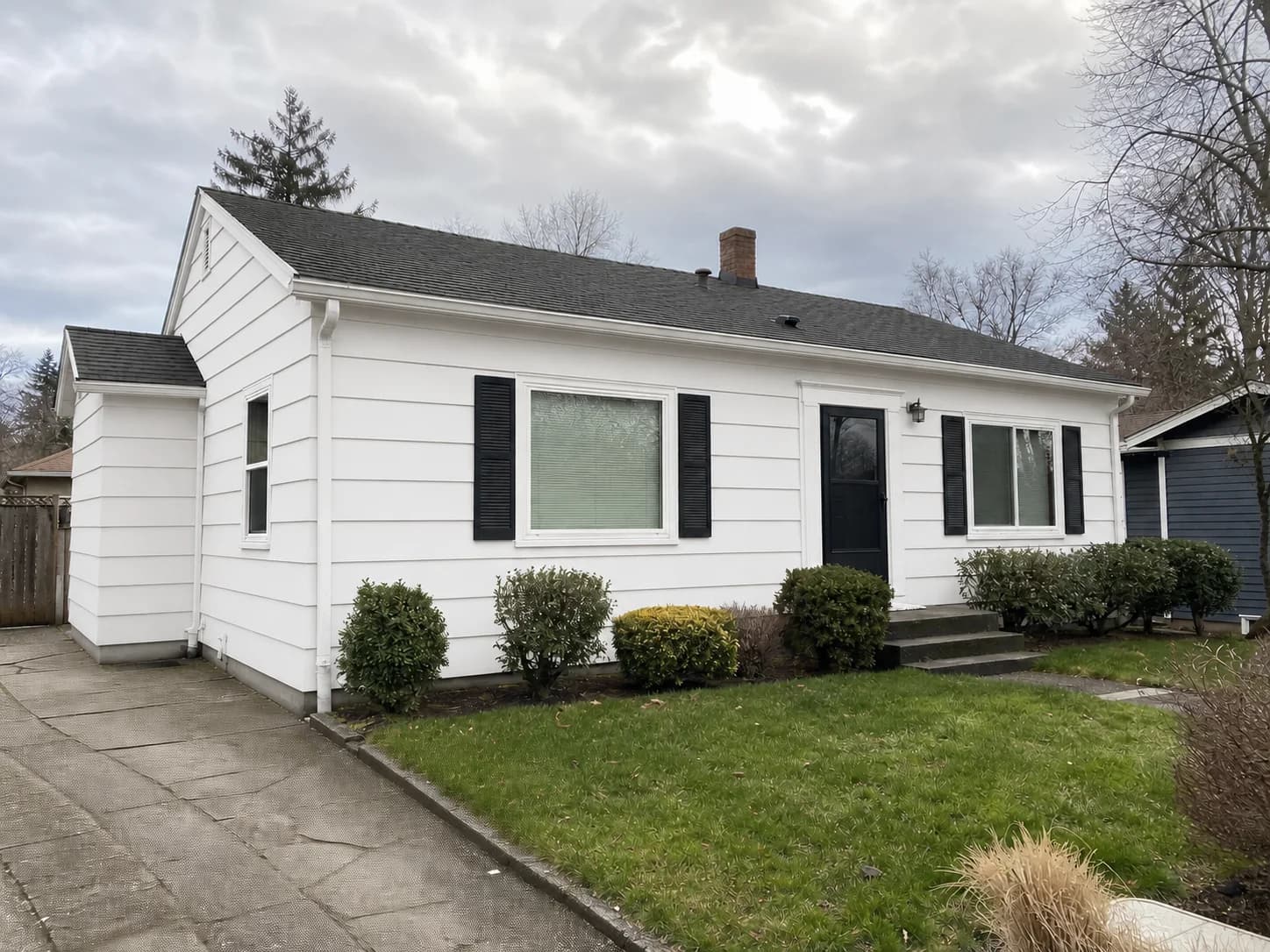
Weathered siding restored with a crisp coastal finish
A faded exterior was repaired, prepared, and repainted in a clean blue-and-white palette designed to withstand coastal weather.
4 days
Project timeline
2 coats
Finish system
100%
Walkthrough approved
Made for the trades
Any job with a before and an after.
- All trades
- Pressure washing before & after maker
- Landscaping before & after maker
- Roofing
- Cleaning
- Remodeling
- Concrete
- Decks & fences
- Window cleaning
- Gutters
- Flooring
- Junk removal
Questions
Good to know
1Which design works best for painting?
Framed suits interiors and color changes because both photos stay on screen together. Wipe is great for exteriors shot from the curb, where the before and after line up well.
2Can I show several rooms in one video?
Yes. Add each room as its own before and after job, up to six, and they play one after another with your name at the start and your number at the end.
3Is the before and after maker really free?
Yes. Make as many videos and images as you like, with no signup and no credit card. Each one carries a small “Made at donepages.com/free” mark in the corner.
4Do my photos get uploaded anywhere?
No. The video and images are made right on your phone or computer. Your photos stay on your device unless you choose to build a DonePage with them.
5Can I put several jobs in one video?
Yes. Add up to six before and after pairs and they play one after another, with your title card at the start and your contact details at the end.
6Which sizes can I make?
9:16 for Reels, TikTok, Shorts and Stories, 4:5 for the Instagram and Facebook feed, and a 1:1 square that works on Google Business Profile and anywhere else.
7Can I add music?
Add a trending sound when you post on TikTok or Instagram. The apps favor videos with trending sounds, and it keeps the file clear of copyright problems.
8Why doesn't the video work in my browser?
Making the video needs a recent browser: Chrome, Edge or Safari 17 and newer. If yours can't, the image download still works everywhere.
9Can I make these without the DonePages mark?
Yes. DonePages plans make before and after videos from every job page, without the mark, alongside the page, quote form, review requests and Google posts.
Nothing you add here is uploaded or stored by DonePages.
Ready when the job is
Make the video. Then let the job win the next one.
DonePages turns every finished job into a page, a quote form, a review request and a Google post, while you get on with the next job.
7-day free trial
Your photos stay yours
Cancel whenever